
Appearance
Browsing the Catalog
Click Catalog in the top navigation. The sidebar lists catalog pages grouped in folders — in the demo: Run, Github, Gitlab, GCP, AWS, plus Teams, Users and dashboards.
Catalog pages
Open a page (e.g. Github → Github Repositories) to see all entities of its blueprint in a table:
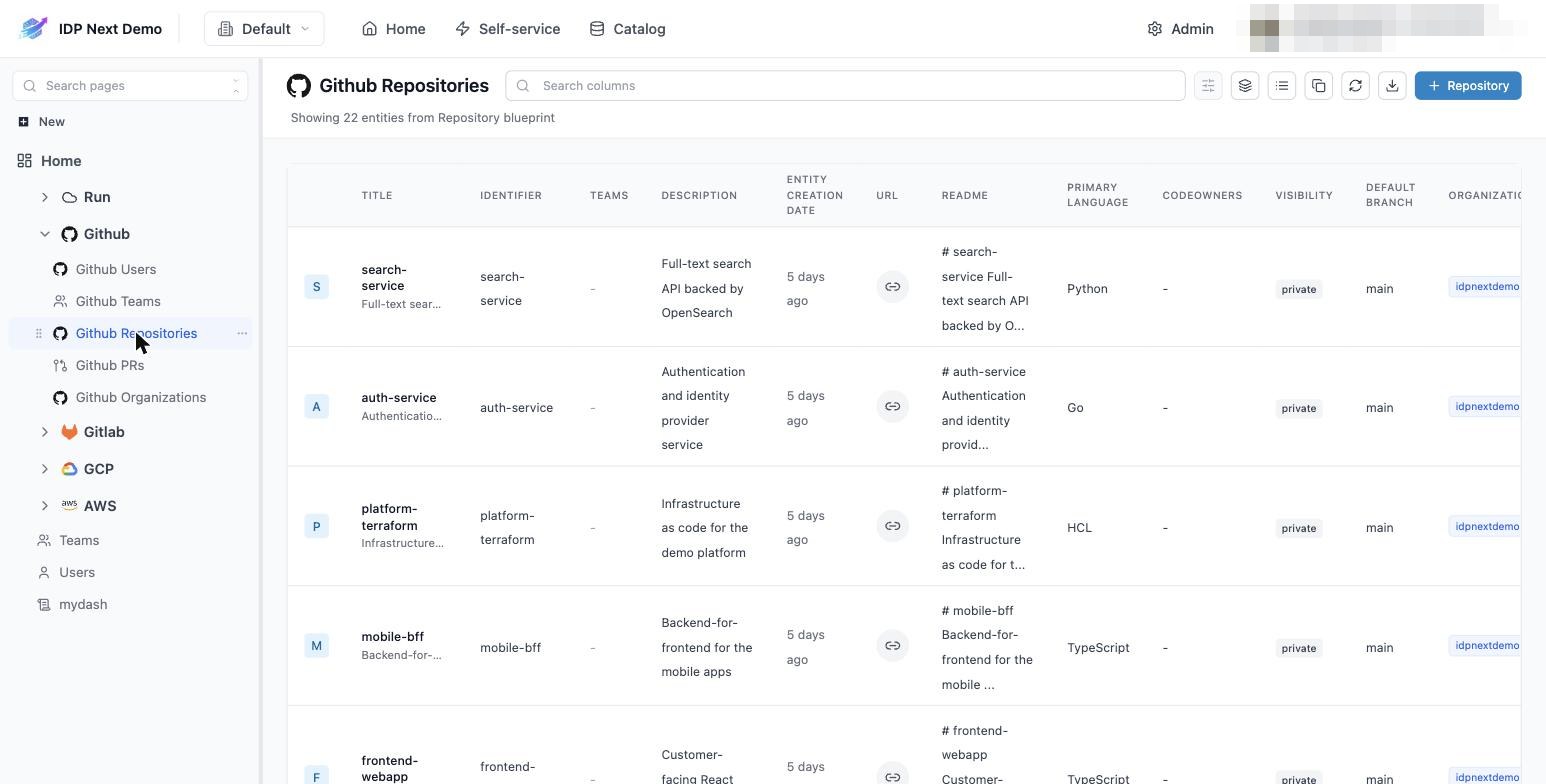
From the toolbar you can:
- Search columns — type to filter rows across visible columns.
- Filter — property-based filters (e.g.
language = Python). - Group by — group rows by any property.
- Switch view — table ↔ cards.
- Export / copy the current view.
- + <Blueprint> — manually create an entity (see below).
Column layout (order, width, visibility) is yours — drag headers to adjust; it's remembered per page.
Entity details
Click any entity title to open its detail page:
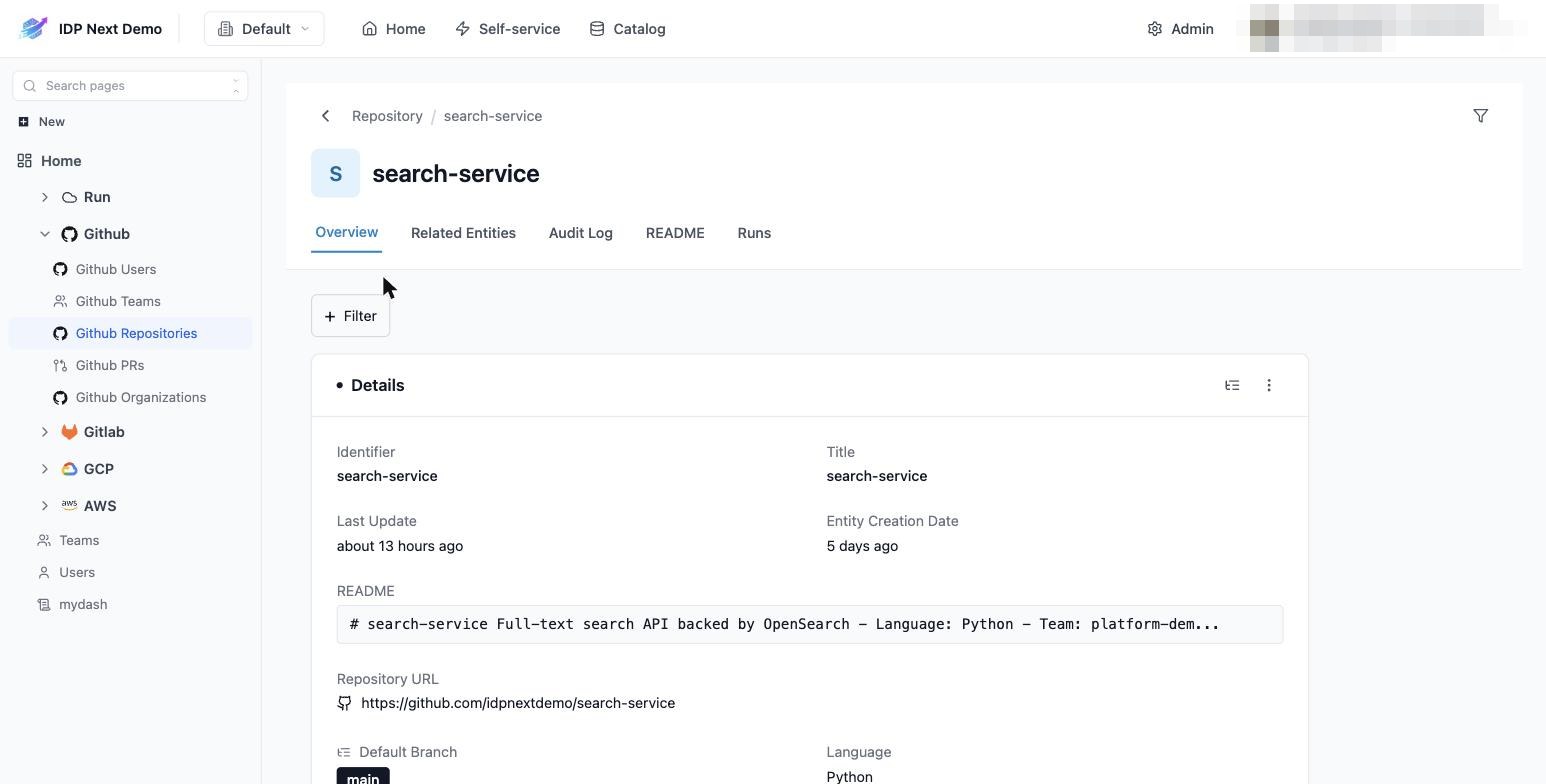
Tabs:
| Tab | Content |
|---|---|
| Overview | all properties — links are clickable, markdown (README, CODEOWNERS) is rendered |
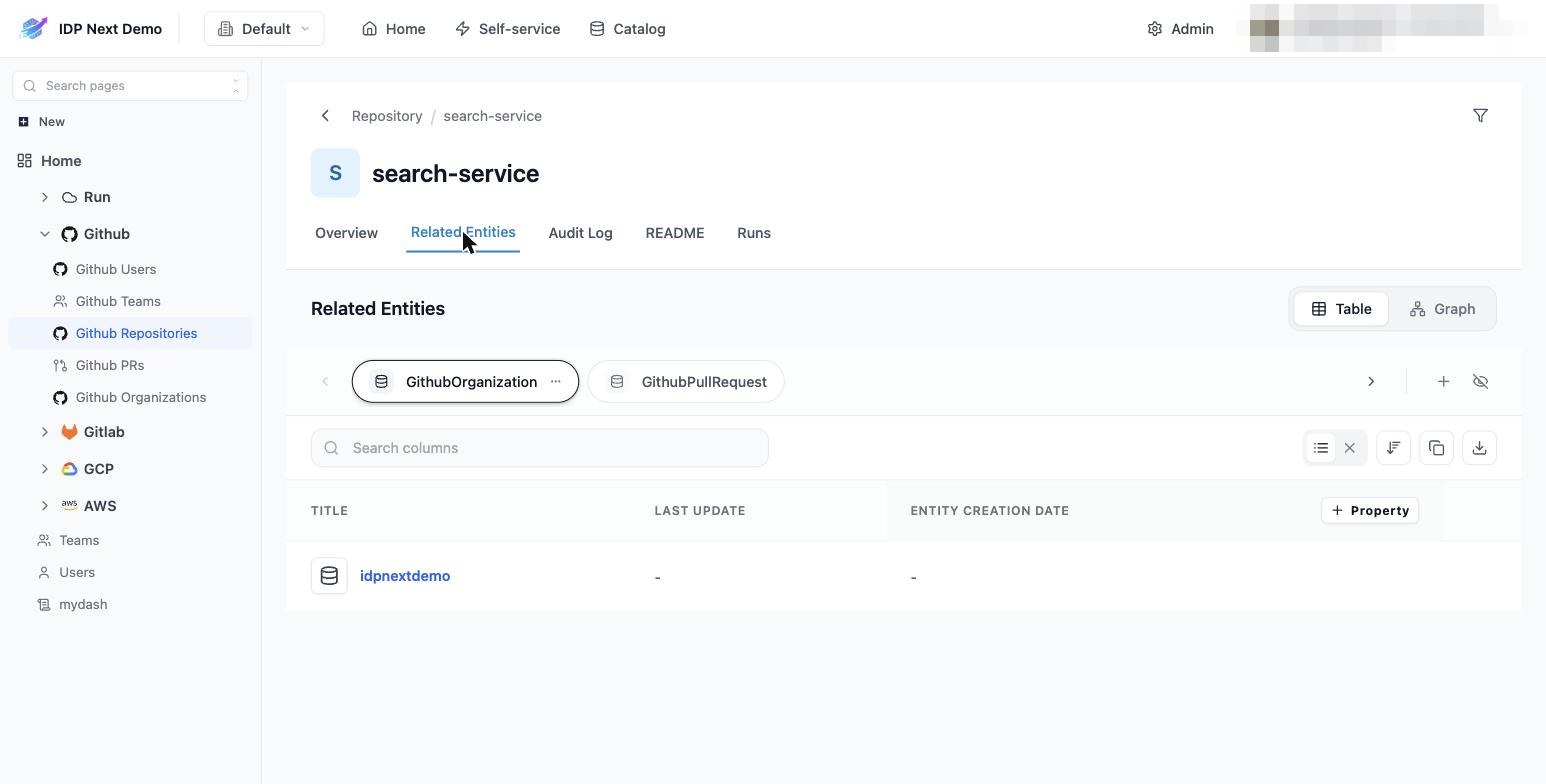
| Related Entities | entities linked through blueprint relations, as a table or a graph |
| Audit Log | every change to this entity, with timestamps and sources |
| README | the synced README rendered full-page |
| Runs | workflow runs related to this entity |
Creating and editing entities manually
Most entities arrive via data sources, but you can manage them by hand:
- Create: on a catalog page, click + <Blueprint> (e.g. + Repository) and fill the form — fields come from the blueprint schema, so enums render as dropdowns and required fields are enforced.
- Edit: on an entity page, use the actions menu (⋮) → Edit to change properties.
- Delete: same menu. Note that a data-source sync may re-create entities that still exist upstream.
Identifiers are unique per blueprint + tenant
Two entities of the same blueprint can't share an identifier in one tenant. Upserts (like the workflows' UPSERT_ENTITY step) update the existing entity instead of failing.
Next: dashboards →