
Appearance
Logging In & First Steps
1. Sign in
Open your IDP Next URL (for the demo: https://idpnext.wazyneo.com). You'll land on the login page:
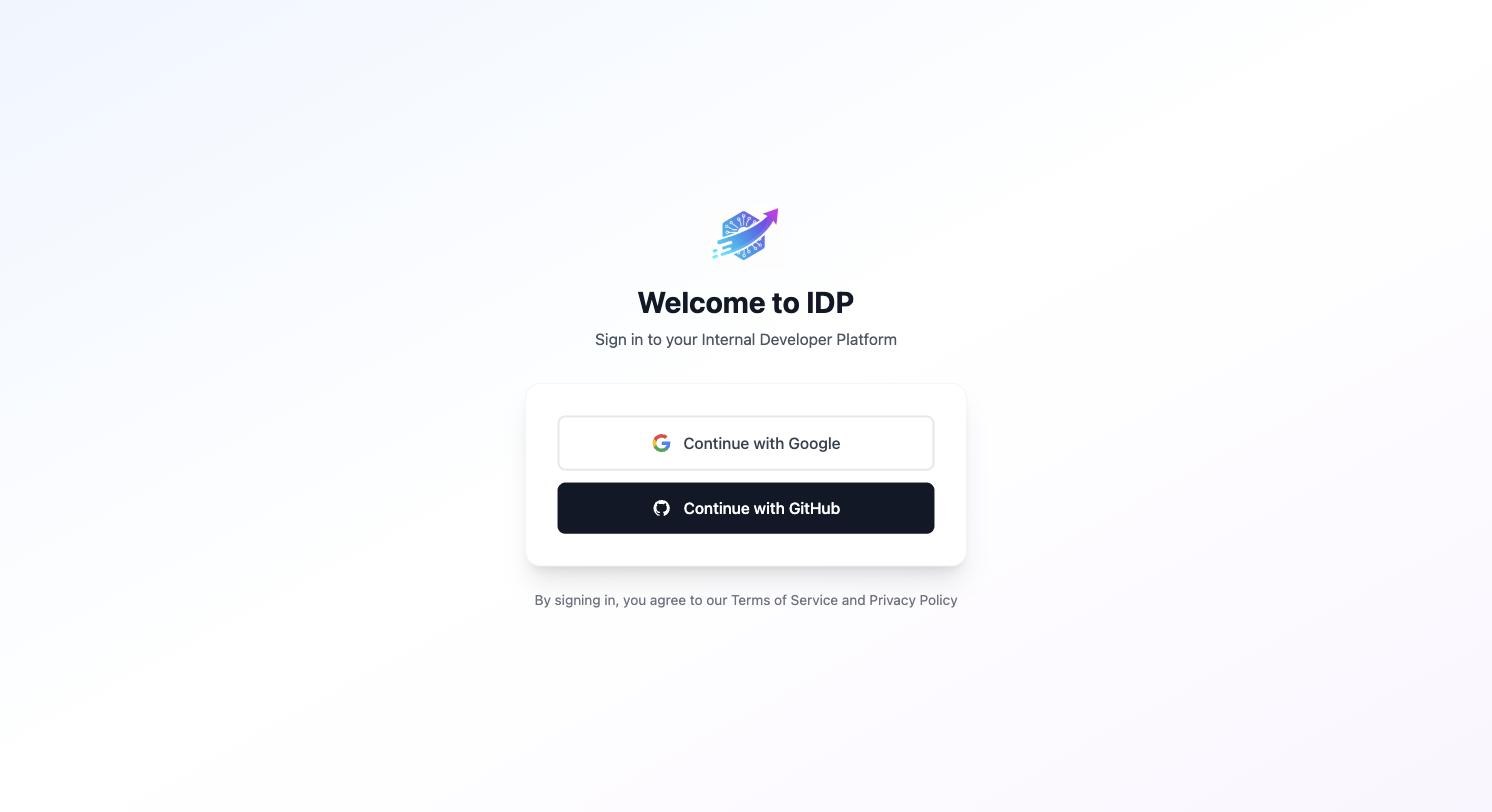
Click Continue with Google (or Continue with GitHub) and approve the OAuth prompt. No password is stored in the IDP — authentication is delegated to your identity provider.
First user = new organization
The first time you log in, the platform creates an organization for you with a Default tenant. You become the Organization Owner. Everyone you invite later joins this organization.
Belong to more than one organization?
If your account is a member of multiple organizations and you haven't picked a default yet, you're asked to choose one right after signing in — that organization loads every time you log in. You can change your default later under Profile → Default organization (see Your profile). Members of a single organization never see this step.
2. Get oriented
After login you land on the Home dashboard:
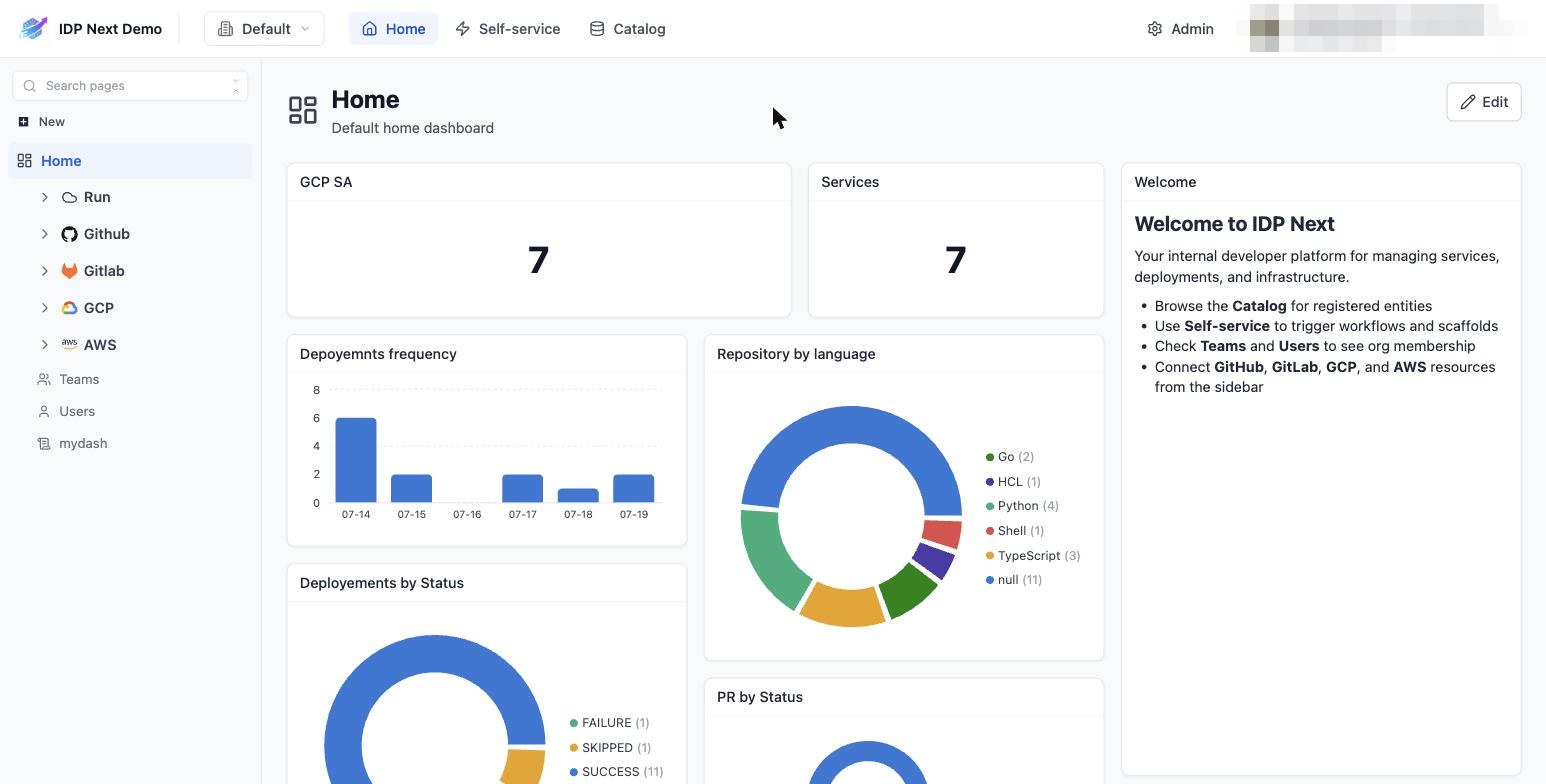
The top navigation has four areas:
| Area | What's there |
|---|---|
| Home | Dashboards — the default home dashboard plus any dashboards you create |
| Self-service | Workflows you can run (deployments, releases) and your recent runs |
| Catalog | The software catalog — every entity, organized in pages and folders |
| Admin | (admins only) Data model, workflows, data sources, secrets, users, RBAC, audit log |
On the left, the sidebar lists catalog pages grouped in folders (Run, Github, Gitlab, GCP, AWS in the demo) plus Teams, Users, and your dashboards.
The tenant switcher (top left, "Default") lets you change environment if your organization has several tenants.
3. Check your profile
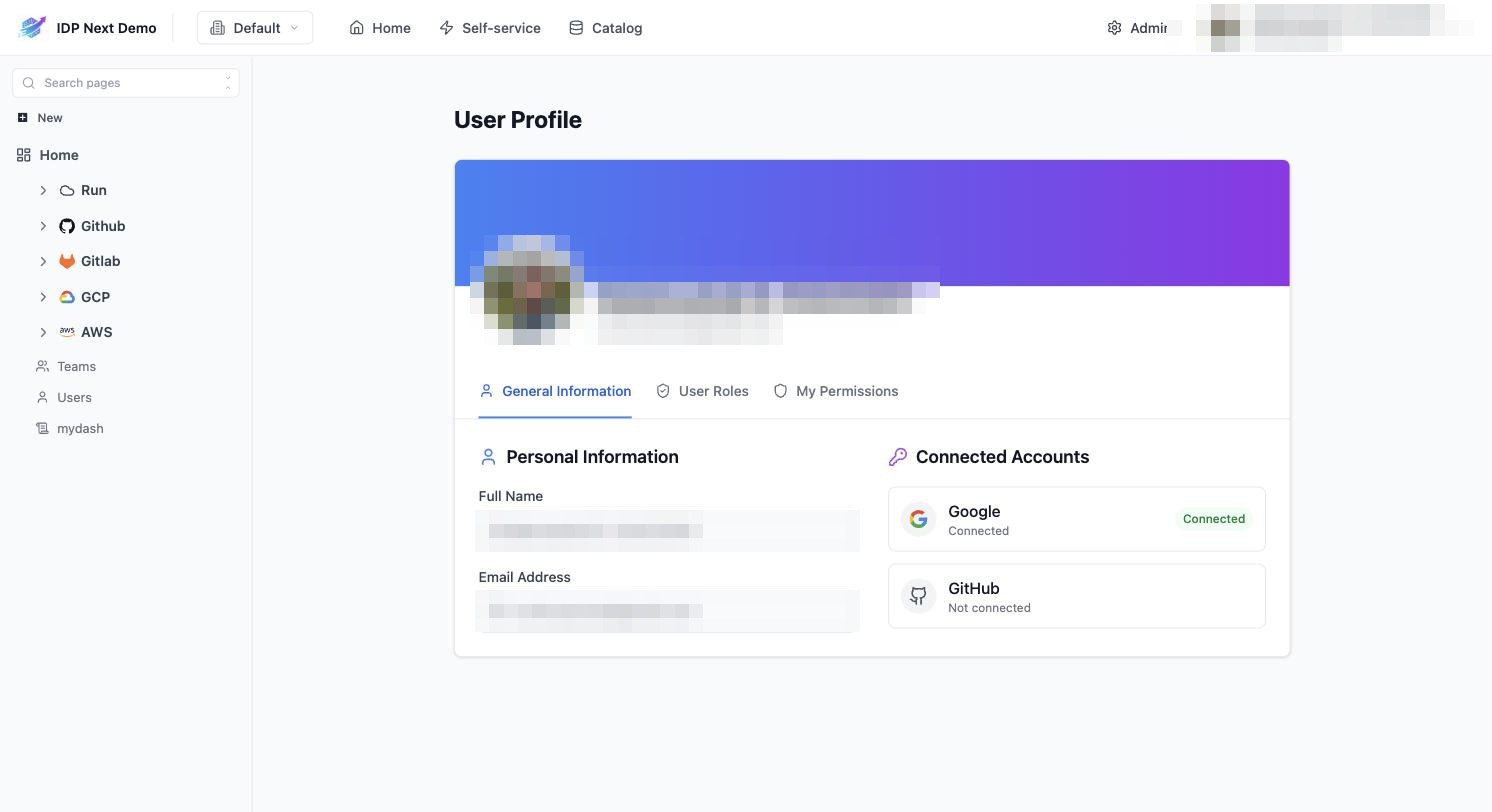
Click your avatar (top right) → Profile to see your account, connected identity providers, and — under User Roles / My Permissions — exactly what you're allowed to do:
Where to go next
- You're an admin setting up the platform → continue with Part 1: Connect GitHub.
- Your platform team already set everything up → jump to Part 5: The Self-Service Portal.